.webp)



Listings with video receive 403% more inquiries than listings without. That stat used to be the ceiling of what AI real estate video could do for an agent. Today, the ceiling moves.
Creative Mode is now live in Amplifiles. It adds free-form AI prompting, virtual staging, lifestyle element insertion, custom start-and-end frames, speed ramps, AI close-ups, and full clip-length control to every Amplifiles account. It is the biggest update we have ever shipped, and it changes what an agent, broker, or real estate photographer can do with a listing photo.
Alongside Creative Mode, Quick Animations also picked up a major expansion: ambient effects, timelapses, and time-of-day shifts — all in the same one-click workflow, at the same $1.50 per image. We will cover both in this article.
Why we built Creative Mode
For most of the past decade, real estate video has been gated by cost and time. A professional listing video — the kind with cinematic camera moves, lifestyle staging, and proper pacing — meant hiring a videographer, a stager, and an editor. The bill ran $500 to $2,000 per listing. The turnaround took days.
Amplifiles solved 80% of that problem. Smooth AI-generated animations, captions, voice-overs, branding, all rendered in under 5 minutes at $1.50 per image. Agents, photographers and marketers in 75+ countries adopted it because the math was unbeatable: a full listing video for the price of a coffee.
But the other 20% kept showing up in user feedback. The empty unit nobody could sell because the rooms looked cold. The luxury listing that needed a hero shot of the kitchen island. The brand intro the brokerage wanted on every video. The detail close-up,¨å+ the marble, the fireplace, the view — that turns a scroll-past into a showing request. The lifestyle moment that makes a 4-bedroom Colonial feel like a home, not a floor plan.
These needs pushed agents back to videographers and stagers. We watched it happen and decided to absorb that work into Amplifiles.
Creative Mode is what came out of it. Same engine. Same 5-minute renders. Same per-second pricing economics. But now you can prompt anything, stage anything, drop in lifestyle elements, define start and end frames, ramp speeds cinematically, and zoom into the details that sell.
Two ways to make visual effects (VFX) in Creative Mode
Creative Mode gives you two paths to make a video. Both produce the same quality output. Both render in the same 5 minutes. Both bill at the same per-second rate. The only difference is how much creative direction you want to give.

Path A: Use ready-made effects (no prompt writing)
Open Creative Mode, pick the effect, follow instructions and generate. That is the entire workflow. No prompt to write, no sentence to phrase correctly, no AI vocabulary to learn.
Six ready-made effects ship with the launch:
- Virtual Staging. Furnish empty rooms in six design styles, one click each
- Add People. Drop curated lifestyle figures (couples, families, individuals) into rooms
- Add Elements. Cars in driveways, coffee on counters, decor on tables, plants in corners, plus your own custom elements saved to a personal library
- AI Close-Up. Describe the detail you want to highlight (the fireplace, the marble countertop, the view), the AI generates a new framed close-up image from the original
- Speed Ramps. Shorten the clip length to speed up the motion, lengthen it to slow down; works on any animation between a start and end image
- Start–End Image. Upload your first and last frame, AI generates the motion between them
Every ready-made effect was tested on real listings before shipping. They are designed for the moments agents create most often — staging an empty unit, adding life to a listing, marking a hero shot, transitioning between scenes. If a one-click option fits, you do not need to write a prompt.

Path B: Custom AI prompts (describe anything)
The ready-made effects cover the most common scenarios. Custom prompts cover everything else.
Type what you want in plain English, and the AI generates it. Sunlight moving across the wooden floor. A young couple at the dining table during golden hour. A luxury sedan parked outside the front entrance. Curtains gently swaying as the camera pushes toward the fireplace. Anything you can describe.
Custom prompts are how agents push beyond standard listing animations into branded, cinematic, or lifestyle-driven content. They are also how you stack multiple changes into one generation, "add a couple at the dining table, a coffee on the counter, and golden-hour lighting" is one prompt, not three.
Same engine, same price, your choice
Path A and Path B run on the same AI engine. The output quality is identical. Pricing is identical: $0.30 per second of animation, plus $0.20 per image edit when the photo itself changes. Most agents end up using both, ready-made effects for 80% of the work, custom prompts for the moments that need a specific creative direction.
The rest of this article goes deeper on each feature in both paths, what it costs, and when to use it.
Virtual staging in Creative Mode

Empty rooms photograph poorly. They look smaller than they are, lack warmth, and give buyers nothing to anchor their imagination on. According to the National Association of Realtors, 81% of buyers say staging makes it easier to visualize a property as their future home.
Until now, agents using Amplifiles had to stage photos elsewhere — through tools like REimagineHome or Collov AI — then bring the staged images back into Amplifiles for the video step. Creative Mode collapses that workflow into one.
Inside Creative Mode, virtual staging is a ready-made effect. Three steps:
- Open the image edit panel and pick a virtual staging style: Scandinavian, Modern, Mid-Century, Farmhouse, Coastal, or Industrial.
- Use the ready-made prompt for that style (or tweak it).
- Generate.
The AI furnishes the room with style-appropriate furniture, decor, and lighting. Walls, floors, ceilings, windows, and architectural details stay exactly as they are — only the styling changes. Most staging results render in under 60 seconds, and you can regenerate as many times as you like until the look is right.
For agents and photographers already using virtual staging in their workflow, Creative Mode is faster (no platform-hopping) and cheaper per finished video (one tool, one bill). For a deeper guide on staging itself, see our complete guide to real estate virtual staging.
Pricing: 20 credits ($0.20) per staging generation, plus the per-second animation rate. A 5-second virtually staged clip costs $1.70 total ($0.20 staging + $1.50 animation).
Add people, cars, and lifestyle elements

Static photos sell the layout. They do not sell the lifestyle. Buyers scrolling Instagram see a hundred listings a day; the ones they remember have movement, atmosphere, and a sense that someone actually lives there.
Creative Mode lets you stage that lifestyle without a photoshoot. Both Add People and Add Elements ship as ready-made effects, and both also accept custom prompts when you want more specific direction.
Add people. Place a couple at the dining table, a buyer walking through the hallway, a child playing in the garden. The AI generates lifestyle figures and integrates them naturally into the scene with realistic shadows, scale, and lighting. AI-added people are general lifestyle staging, not real individuals. They cannot be matched to specific clients, agents, or models.
Add elements. Drop in a car in the driveway, a coffee on the counter, a bouquet on the dining table, a bicycle by the front door, outdoor furniture on a patio. These small staging touches transform a property listing into a property story. Buyers do not just see a kitchen, they see a kitchen where someone makes coffee in the morning.
Build your own elements library. Beyond the curated set, you can save your own elements: a specific car make and model, a brokerage-branded sign, a particular sofa style, a recurring decor piece — to a personal library and drop them into any image or animation later. Useful for agents and brokerages that want a consistent visual signature across listings.
All of these features work on existing listing photos. No reshoot, no actors, no setup time.
Pricing: 20 credits ($0.20) per edit, plus the per-second animation rate. The pattern matters: each generation is one edit. If you want a couple AND a car AND a bouquet, you can describe all three in a single prompt and get one edit at one price, instead of three sequential generations.
Custom AI prompts: anything you can describe

The ready-made effects in Creative Mode cover the most common real estate video scenarios. The custom prompt field covers everything else.
A custom prompt is exactly what it sounds like: type what you want to see, in plain English, and the AI generates it. Examples that work well in real estate marketing:
- Sunlight slowly moves across the wooden floor as the curtains gently sway.
- Camera slowly pushes in toward the fireplace as the flames flicker.
- Add a luxury sedan parked outside the front entrance during golden hour.
- A young couple sitting on the sofa, laughing and holding coffee cups, soft morning light through the window.
- Furnish this empty bedroom in a modern Scandinavian style with light wood and white linens.
Good prompts share four traits: they are specific, they describe action or motion, they mention the mood or lighting where relevant, and they keep to one or two ideas per prompt. Vague language ("make it look nice") rarely produces useful results. Conflicting instructions ("modern but rustic, dark but bright") produce muddled ones.
Custom prompts that only animate the existing photo (motion, camera moves, lighting changes) cost just the per-second animation rate. Custom prompts that change the photo itself (adding people, objects, or staging) include a 20-credit ($0.20) image edit on top of the animation cost.
The custom prompt field also supports the ready-made effects as natural-language requests. Typing "stage this living room in coastal style" produces the same result as clicking the Virtual Staging button and picking Coastal — the prompt is just a faster way in if you know exactly what you want.
Speed ramps and cinematic close-ups
The two features that turn an animated listing video into a cinematic listing video are speed ramps and close-ups. Both are ready-made effects in Creative Mode.
Speed ramp
A speed ramp controls how fast the camera moves between two frames. In Creative Mode, you set up the motion by uploading a start image and an end image, then choosing the clip length. The shorter the clip, the faster the AI moves between the two frames. The longer the clip, the slower and more cinematic the motion.
One control, one slider, total flexibility:
- 3-second clip between a wide shot and a close-up = a fast, energetic push-in.
- 8-second clip between the same two frames = a slow, gradual reveal.
- 15-second clip = a true cinematic slow-burn that lets the viewer absorb every detail.
Use slow ramps on the main view, the kitchen island, the fireplace, or any premium detail. Use fast ramps on hallways, transitions, and connecting shots. Most clips should stay at standard speed — speed ramps work best as accents, not as the default.
Speed ramps require both a start image and an end image. The pacing is set by the clip length you pick, and there is no extra image edit cost — only the per-second animation rate applies.
AI close-ups

A close-up zooms into a specific area of a listing photo, like a curated detail shot in a luxury listing reel. Common use cases for real estate listing videos:
- Marble countertops, kitchen islands, custom faucets
- Fireplaces, fixtures, and architectural details
- Window views — ocean, skyline, garden, mountain
- Lifestyle details — a coffee cup, a candle, a vase
- Smiling faces (when people are added to the scene)
Close-ups in Creative Mode are prompt-based. You describe what you want featured ("a tight shot of the marble waterfall island", "a close-up of the brass faucet", "the view of the city skyline through the picture window"), and the AI generates a new framed image from the original photo, then animates it. There is no need to manually crop or click on the source image — the AI handles the framing based on your description.
Most close-ups work best as 3–5 second clips.
Close-ups count as image edits — 20 credits ($0.20) per generation — plus the per-second animation rate. A 4-second close-up of a fireplace runs $1.40 total.
Use close-ups sparingly. One to three per listing video is plenty. Pair them with speed ramps for the strongest cinematic effect.
Start–end image animations
The start-end image feature lets you define the first and last frame of an animation. The AI generates the motion between them. It is the cleanest way to produce custom transitions, brand intros, and reveal shots.
Common use cases for real estate marketing:
- Reveal shots — Exterior shot transitioning to a furnished interior.
- Brand intros — Brokerage logo card animating into the first listing photo.
- Before/after sequences — Empty room transitioning to a virtually staged room.
- Custom transitions between hero shots — A controlled bridge between two specific frames.
To use it, upload your first frame, upload your last frame, set the clip length, and (optionally) add a prompt to guide the transition style: slow zoom or smooth pan left. The AI handles the in-between.
Tip: align your start and end images for the most natural results. The AI produces the cleanest transitions when the two frames share visual continuity — same room, same lighting, same general orientation. If your start frame is a kitchen and your end frame is a totally unrelated bedroom, the AI has to invent everything in the middle, and that is where hallucinations show up. For a kitchen-to-living-room transition, you want a start frame where the living room is already partially visible (through a doorway, in the background) so the AI has a real path to follow rather than imagining one. The more aligned the two frames are, the cleaner the result.
Start–end image clips do not include an image edit (you are providing both frames), so the cost is just the per-second animation rate — $1.50 for a 5-second transition, $4.50 for a 15-second cinematic reveal.
The feature pairs especially well with virtual staging: stage an empty room first, then use the empty photo as the start frame and the staged photo as the end frame. The AI animates the transformation. It is a direct visual proof of what staging does to the listing — the kind of clip that performs disproportionately well on social.
Custom clip lengths: pay only for the seconds you use
In Quick Animations, every clip is exactly 5 seconds. That is a deliberate choice, 5 seconds is the sweet spot for social media, proven to perform on Instagram Reels, TikTok, and Facebook Stories.
But a 60-second listing video is not 12 clips of equal weight. It has hero shots that deserve more time and transitions that should move fast. Creative Mode lets you control that.
You can set every clip to whatever length the moment needs, anywhere from 3 to 15 seconds:
- 3-second clips for transitions and connectors
- 5-second clips for standard listing animations
- 8–10 second clips for hero shots, virtual staging reveals, and lifestyle scenes
- 12–15 second clips for premium hero moments, brand intros, and luxury walkthroughs
The pricing scales linearly: 30 credits ($0.30) per second of animation. A 3-second connector costs $0.90. A 10-second hero costs $3.00. A 15-second flagship hero costs $4.50. The same 60-second listing video can cost the same total whether it is 12 standard clips or a mix of long heroes and short transitions but the second version feels twice as cinematic.
This is the part of Creative Mode that compounds. Once you start mixing clip lengths, your videos stop looking like animated slideshows and start looking like edited films.
Image edits: change the photo before you animate

Creative Mode bills in two parts: image edits and animation. Understanding the difference is the easiest way to predict what a video will cost before you generate it. An image edit is any generation that changes the source photo itself. The AI takes your listing image, modifies it (adds furniture, drops in a car, places people in the room, frames a close-up), and outputs a new edited image. Each image edit costs 20 credits ($0.20). The edit happens before the animation step.
Effects that count as an image edit ($0.20 each):
- Virtual Staging — the room is now furnished
- Add People — the photo now has lifestyle figures in it
- Add Elements — the driveway now has a car, the table now has a bouquet
- AI Close-Up — a new framed image is generated for the zoom
Effects that do NOT count as an image edit:
- Speed Ramps — applied to clips you have already animated, no new image generated
- Start–End Image animations — you provide both frames yourself, no edit needed
- Custom prompts that only animate the existing photo — motion, camera moves, lighting changes do not modify the photo content
The animation step — turning the photo (edited or original) into video — always costs $0.30 per second, separately from any image edit. So the math for any Creative Mode clip is:
Total clip cost = (image edit, if applicable) + (clip length × $0.30)

One useful rule: stack edits in a single prompt to save credits. If you want a couple at the dining table AND a car in the driveway AND a bouquet on the table, describe all three in one custom prompt. That counts as one image edit ($0.20), not three. The AI handles the multiple changes in a single generation.
What is new in Quick Animations
Creative Mode is the headline of this update, but Quick Animations got a major expansion at the same time. Three new animation categories shipped alongside Creative Mode, all available in the same one-click workflow agents already use. Same $1.50 per image. Same 5-second clips. Same engine.
Ambient effects
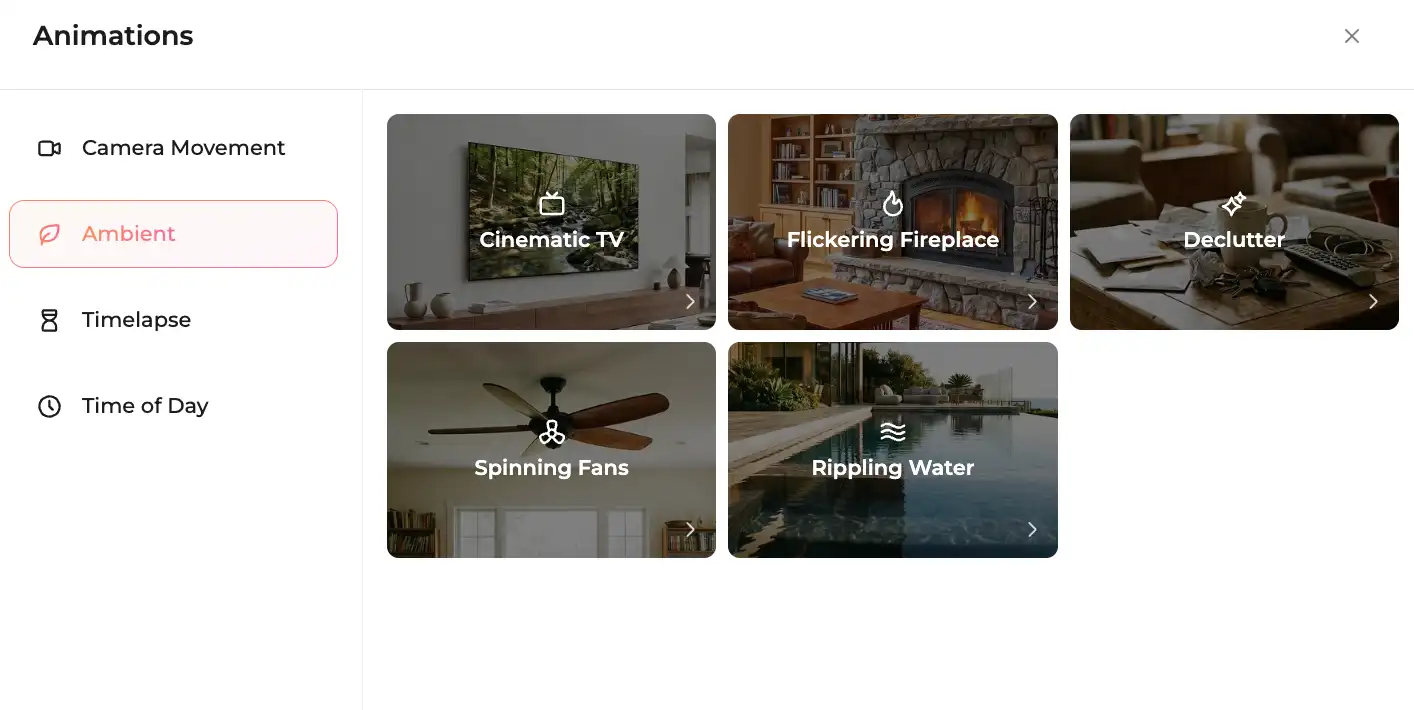
Bring small, ambient motion to staged interiors. These are the touches that turn a still photo into a scene that feels alive. Five effects at launch:
- Cinematic TV — make the TV in a living room actually have content, not sit as a black rectangle
- Flickering Fireplace — animate flames in a still fireplace shot
- Declutter — clean up countertops, tables, or surfaces by removing stray objects from the scene
- Spinning Fans — animate ceiling fans for warmth and motion in interior shots
- Rippling Water — animate pool surfaces, fountains, or water features in exterior shots
Ambient effects are the kind of detail that previously required a videographer with a tripod and post-production. Now they ship as one-click options.
Timelapses

Compressed time-of-day transitions for hero exterior shots. Four directional transitions ship at launch:
- Night to Sunrise
- Afternoon to Sunset
- Day to Night
- Night to Day
Timelapses work especially well on exterior establishers. A static shot of a property at noon becomes a 5-second clip showing the lighting, sky, and atmosphere shift across hours — the same kind of dramatic intro you see on architectural showcase reels, without the multi-hour shoot.
Time of Day

Shift the lighting and atmosphere of a single shot to a different time of day. Six options ship at launch:
- Sunrise
- Midday
- Afternoon
- Sunset
- Twilight
- Night
Time of Day is one of the highest-leverage features for agents whose listings were photographed at the wrong time. A property shot at flat midday lighting can be transformed into a golden-hour sunset reel. A bright daytime exterior can be re-lit as a moody twilight shot for a luxury Instagram post. Same source photo, completely different mood.
Same workflow, same price
All three new categories ship as one-click effects in Quick Animations. No prompt writing, no Creative Mode toggle, no pricing change. Open the Animations menu, pick the effect, generate. Output is 5 seconds at $1.50, identical to existing Quick Animations.
For agents who use Quick Animations as their primary tool because of its speed and predictable cost, these new effects significantly expand the creative range without changing the workflow.
Creative Mode vs Quick Animations
Both modes use the same engine. They differ in flexibility, control, and pricing structure.
| Feature | Quick Animations | Creative Mode |
|---|---|---|
| Camera animations | Curated presets | Curated presets + custom prompts |
| Ambient effects (fireplace, fans, TV, water, declutter) | Yes | Yes |
| Timelapses (Night→Sunrise, Day→Night, etc.) | Yes | Yes |
| Time of Day shifts | Yes | Yes |
| Virtual staging | Not available | Yes |
| Add people / elements | Not available | Yes |
| Custom elements library | Not available | Yes |
| Start–end images | Not available | Yes |
| Speed ramps | Not available | Yes |
| AI close-ups | Not available | Yes |
| Custom AI prompts | Not available | Yes |
| Clip length | Always 5 seconds | 3–15 seconds, your choice |
| Pricing | $1.50 per image (flat) | $0.30 per second + $0.20 per image edit |
| Best for | High-volume, fast turnaround | Premium listings, creative control |
When to stick with Quick Animations: when the photos are already strong, the listing is straightforward, and you want predictable per-image pricing across high-volume work. With the new Ambient, Timelapse, and Time of Day effects, Quick Animations now covers a much wider creative range than before. Most listing videos can be produced entirely in Quick.
When to use Creative Mode: when you are staging an empty unit, marketing a luxury listing, producing branded content, or want cinematic pacing for premium properties.
Both modes are available. Switch between them inside your video project — same login, same credits.
Pricing: how Creative Mode bills
Creative Mode pricing has two simple components: animation (the per-second cost of generating the video) and image edits (the per-edit cost when the photo itself changes before animation). The table below shows everything you need to predict the cost of any clip.
| What you pay for | Cost | Details |
|---|---|---|
| Animation — always required | ||
| Per-second rate | $0.30/sec (30 credits/sec) | The cost of generating the video itself, regardless of which effect you used. |
| 3-second clip | $0.90 (90 credits) | Best for transitions and connectors. |
| 5-second clip | $1.50 (150 credits) | Standard listing animation. Same as one Quick Animation. |
| 8-second clip | $2.40 (240 credits) | Hero shots, virtual staging reveals, lifestyle scenes. |
| 10-second clip | $3.00 (300 credits) | Extended hero shots and cinematic walkthroughs. |
| 15-second clip | $4.50 (450 credits) | Flagship hero moments, brand intros, luxury walkthroughs. |
| Image edit — only when the photo changes | ||
| Per-edit rate | $0.20/edit (20 credits/edit) | One-time cost per generation. Stack multiple changes in one prompt to count as a single edit. |
| Counts as an edit | $0.20 each | Virtual Staging, Add People, Add Elements, AI Close-Up. |
| Does NOT count | $0.00 | Speed Ramps, Start–End Image animations, custom prompts that only animate (no photo changes). |
| Comparison: Creative Mode vs Quick Animations | ||
| Quick Animation | $1.50 flat | Always 5 seconds. One price per image, regardless of effect. |
| Creative Mode (animation only) | $0.30 × seconds | 3 to 15 seconds. Pay only for the seconds you use. |
| Creative Mode (with edit) | $0.20 + animation | Add staging, people, elements, or close-up to any clip. |
| Account & access | ||
| Free credits at signup | 1,200 credits | Enough to test every Creative Mode feature on a full listing. No credit card required. |
| Subscription required? | No | Pay-as-you-go credit balance. No paywalls, no premium tier, no feature gates. |
Animation — always required
Image edit — only when the photo changes
Creative Mode vs Quick Animations
Account & access
The math for any Creative Mode clip is simple: total clip cost = (image edit, if applicable) + (clip length × $0.30).
Worked examples
A 5-second clip with a couple added to the dining room:
- Image edit (Add People): 20 credits ($0.20)
- Animation (5 seconds): 150 credits ($1.50)
- Total: 170 credits ($1.70)
A 15-second flagship hero shot using a custom prompt (no image edit):
- Animation (15 seconds): 450 credits ($4.50)
- Total: 450 credits ($4.50)
A 5-second virtual staging clip:
- Image edit (Virtual Staging): 20 credits ($0.20)
- Animation (5 seconds): 150 credits ($1.50)
- Total: 170 credits ($1.70)
No subscription, no upgrade tier
Every Creative Mode feature is included with your standard credit balance. No paywalls, no premium plans, no feature gates. New accounts get 1,200 free credits, enough to test every feature on a full listing.
For full pricing details, see the Amplifiles pricing page.
How to try Creative Mode

Creative Mode is live in Amplifiles studio right now. Look for the Creative Mode button next to images animation selection.
The button is visible for images that haven't been animated yet, serving as an alternative to quick animations. For images that are already animated, the button appears when you select 're-animate'.
What is next for Creative Mode
This launch is the foundation, not the finish line. Currently in development:
- More ready-made effects (additional staging styles, more lifestyle scene presets, more ambient and timelapse options)
- More granular prompt controls (per-clip mood, lighting, and color tone)
- Expanded clip-length range for premium listing flagships
The Creative Mode roadmap is shaped by what real estate professionals actually need.
Frequently Asked Questions
What is Creative Mode in Amplifiles?
Creative Mode is an advanced workspace inside Amplifiles that adds free-form AI prompting, virtual staging, lifestyle element insertion, custom start-end frames, speed ramps, AI close-ups, and full clip-length control to every Amplifiles account. It uses the same engine and rendering speed as Quick Animations, with more creative control on top.
How many virtual staging styles does Creative Mode include?
Creative Mode includes six virtual staging styles at launch: Scandinavian, Modern, Mid-Century, Farmhouse, Coastal, and Industrial. Each style ships with a ready-made prompt that can be tweaked or replaced with your own. Pricing is 20 credits ($0.20) per staging generation, plus the standard per-second animation rate.
Do I have to write prompts to use Creative Mode?
No. Creative Mode gives you two ways to create. Path A is one-click ready-made effects — Virtual Staging, Add People, Add Elements, AI Close-Up, Speed Ramp, and Start–End Image animations. No prompt writing required. Path B is custom AI prompting for anything the ready-made effects do not cover. You can use either path or mix them within a single video.
How much does Creative Mode cost?
Creative Mode pricing has two components: animation at 30 credits per second ($0.30/sec) and image edits at 20 credits per edit ($0.20). A standard 5-second animation costs $1.50, the same as a Quick Animation. Adding virtual staging, people, or close-ups costs $0.20 per edit on top. There is no subscription tier.
What is the difference between an image edit and an animation in Creative Mode?
An image edit modifies the source photo itself before animation — adding people, virtual staging, dropping in objects, or framing a close-up. Each image edit costs 20 credits ($0.20). An animation turns the photo (edited or original) into a video clip. Animations cost 30 credits per second ($0.30/sec). The two are billed separately. A typical Creative Mode clip with one edit and a 5-second animation costs $1.70 total.
How long can a Creative Mode clip be?
Creative Mode clips can be anywhere from 3 to 15 seconds long, in one-second increments. Pricing scales linearly at 30 credits per second ($0.30/sec): a 3-second connector costs $0.90, a 5-second standard clip costs $1.50, a 10-second hero shot costs $3.00, and a 15-second flagship hero costs $4.50.
What is the difference between Quick Animations and Creative Mode?
Quick Animations creates a 5-second animation per image using curated effects — camera movements, ambient effects, timelapses, and time-of-day shifts. The fastest path to a listing video. Creative Mode adds AI prompting, virtual staging, lifestyle elements, custom start-end clips, speed ramps, close-ups, and lets you choose how long each clip runs (3 to 15 seconds). Both modes are available in every account.
What ambient effects are available in Quick Animations?
Quick Animations now includes five ambient effects: Cinematic TV (animate content on a TV screen in a living room), Flickering Fireplace (animate flames), Declutter (clean up countertops and surfaces), Spinning Fans (animate ceiling fans), and Rippling Water (animate pools, fountains, or water features). All ambient effects render as 5-second clips at $1.50 per image, with no Creative Mode required.
Can Amplifiles create timelapse animations from listing photos?
Yes. Quick Animations now includes four timelapse transitions: Night to Sunrise, Afternoon to Sunset, Day to Night, and Night to Day. Each timelapse compresses a time-of-day shift into a 5-second clip from a single source photo. Timelapses work especially well on exterior establishers and cost $1.50 per image, the standard Quick Animations rate.
Can I change the time of day in a listing photo with Amplifiles?
Yes. Quick Animations includes a Time of Day category with six options: Sunrise, Midday, Afternoon, Sunset, Twilight, and Night. The AI shifts the lighting and atmosphere of the source photo to match the chosen time. This is especially useful for listings shot in flat midday light that you want to present as a golden-hour or twilight reel. Pricing: $1.50 per image.
Can Amplifiles do virtual staging now?
Yes. Creative Mode includes built-in virtual staging that furnishes empty rooms with AI-generated furniture and decor in seconds. Walls, floors, and architectural details stay exactly as they are; only the styling changes. Pricing: 20 credits ($0.20) per staging generation plus the standard per-second animation rate. For a deeper guide, see real estate virtual staging.
Can I add my own custom elements to listings?
Yes. The Add Elements feature in Creative Mode lets you save your own elements — a specific car make and model, a brokerage-branded sign, a recurring decor piece — to a personal library, then drop them into any image or animation. Useful for agents and brokerages that want a consistent visual signature across listings. Pricing: 20 credits ($0.20) per edit plus the per-second animation rate.
Can I add people to listing photos in Amplifiles?
Yes. The Add People feature in Creative Mode places AI-generated lifestyle figures (couples, families, individuals) into listing photos. The figures are general lifestyle staging — not real individuals — and integrate with realistic scale, lighting, and shadows. Cost: 20 credits ($0.20) per edit plus the animation rate.
What is a speed ramp in real estate video?
A speed ramp controls how fast the camera moves between two frames in a Creative Mode animation. You upload a start image and an end image, then choose the clip length: shorter clips give faster, more energetic motion; longer clips give slower, more cinematic motion. There are no presets to pick from — the pacing is set by the clip length itself. Speed ramps require both a start and end image, and there is no extra image edit cost — only the per-second animation rate applies.
How do AI close-ups work in Creative Mode?
AI close-ups are prompt-based. You describe what you want featured ("a tight shot of the marble waterfall island", "a close-up of the brass faucet"), and the AI generates a new framed image from the original photo, then animates it. There is no need to manually click on or crop the source image — the AI handles the framing based on your description. Cost: 20 credits ($0.20) per close-up plus the per-second animation rate.
How do I get the most natural results from start-end image animations?
The AI produces the cleanest transitions when the start and end frames share visual continuity — same room, same lighting, same general orientation. If your start frame is a kitchen and your end frame is a totally unrelated bedroom, the AI has to invent everything in the middle, which is where hallucinations show up. For a kitchen-to-living-room transition, pick a start frame where the living room is partially visible (through a doorway, in the background) so the AI has a real path to follow. The more aligned the two frames are, the cleaner the result.
How long does a Creative Mode video take to render?
Most Creative Mode videos render in under 5 minutes — the same speed as Quick Animations. Complex projects with multiple custom prompts, start-end clips, or large image counts can take up to 10 minutes.
Can Creative Mode videos be used on MLS, Instagram, and YouTube?
Yes. Output is 1080p, watermark-free, in vertical (9:16), square (1:1), or horizontal (16:9). They work on every major platform: MLS, Zillow, Instagram Reels, TikTok, Facebook, YouTube, and email campaigns.
Do I need to disclose AI-staged or AI-edited listing photos?
Most MLS systems and state regulations require disclosure when listing images have been digitally staged or altered. Add a clear note to AI-edited content (e.g. "virtually staged image" or "AI-enhanced visualization"). Disclosure rules vary by region — check your local MLS guidelines.
Is there a free trial for Creative Mode?
Yes. Every new Amplifiles account starts with 1,200 free credits — enough to test every Creative Mode feature on a full listing. No credit card required. Sign up here.
Try Creative Mode free. 1,200 free credits. No credit card required. Get started →